
Signing Up For Our Courses
Step 1: Navigate to the Moodle page (lms.cyberanchor.co)
On the moodle home page (figure 1.1), you will see a list of courses available (in this case, only the individual course).
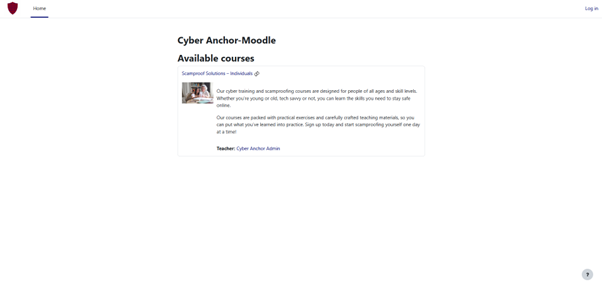
Figure 1.1
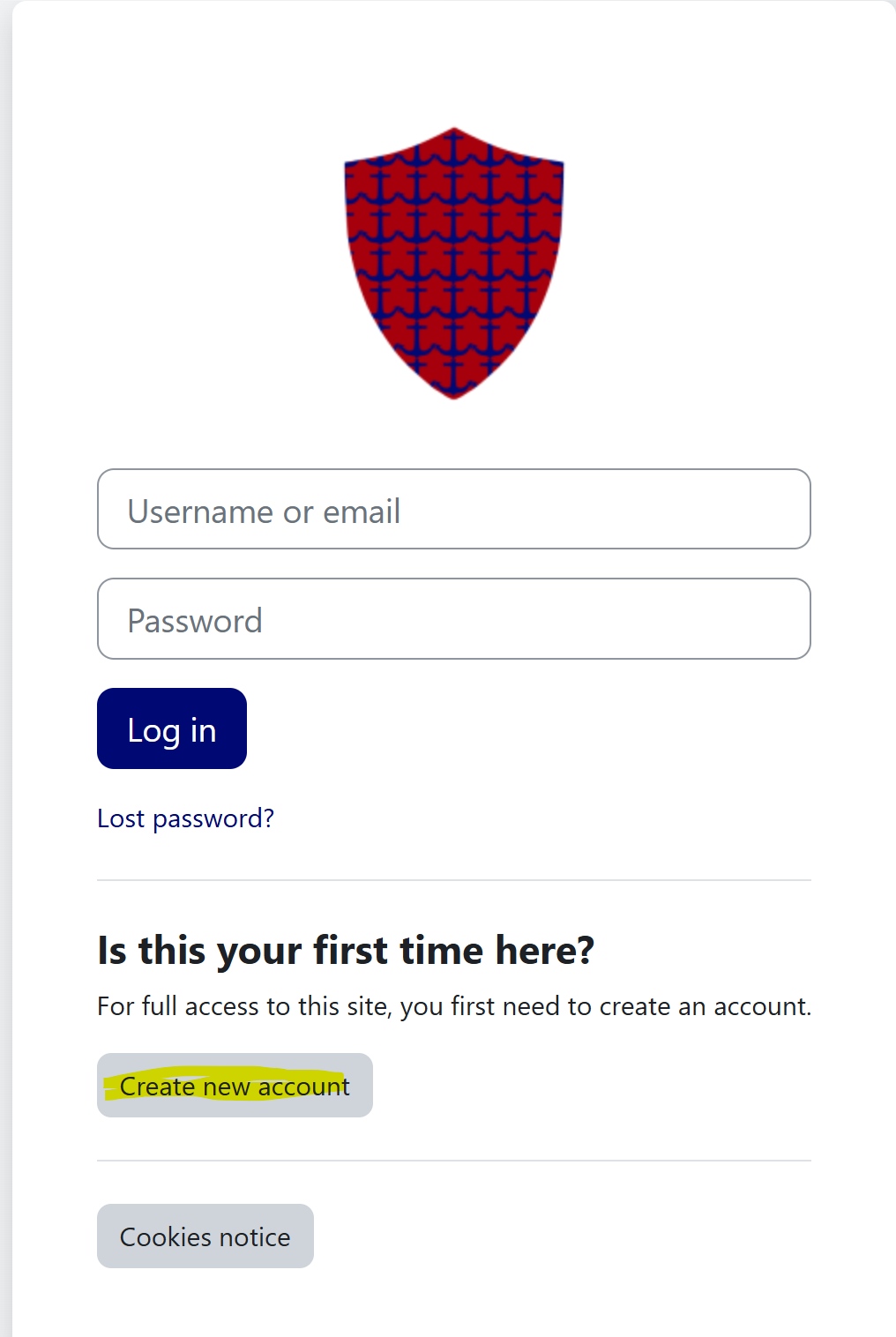
Figure 1.2
Upon clicking on the course, we are redirected to the login page (figure 1.2).
If you have never created an account, proceed to click on the “Create new account button” highlighted in yellow.
Fill in the necessary details above (figure 1.3), and complete the security question.
- Username: just put something that is unique to you (James Smith= JS898)
- Password: Ensure that it is at least 10 characters long. After watching our password setting module, you can then change the password to be more secure in line with our advice.
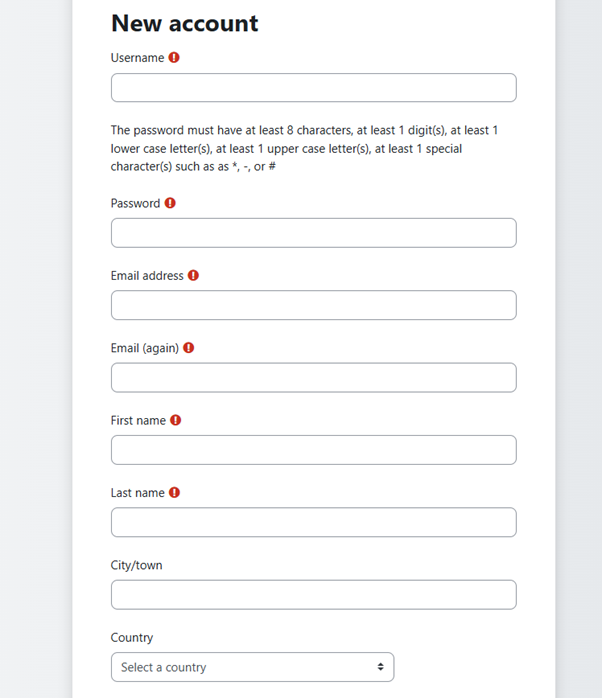
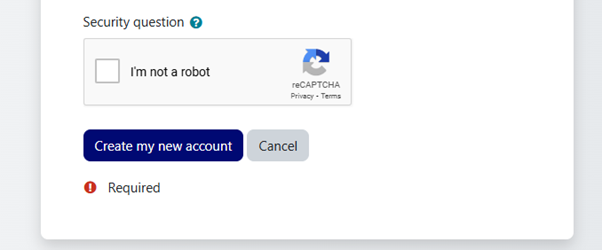
Figure 1.3
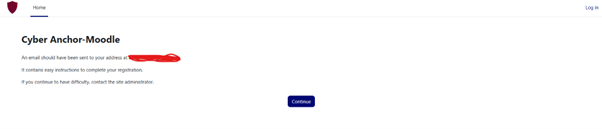
Figure 1.4
Upon joining, you will receive this message indicating an email has been sent to your registered account and that the instructions will be provided. Proceed to the email that you used to sign up.
Step 2: New Account Configuration
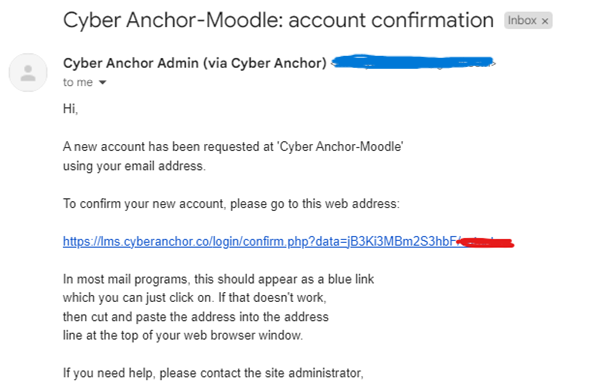
Figure 2.1
Having completed this form, you will receive a similar email (figure 2.1).
Click on the link highlighted in blue (starting https://lms.cyberanchor.co...)
Upon clicking the emailed link, you will redirected to the confirmation page (figure 2.2).
Click “continue”.

Figure 2.2
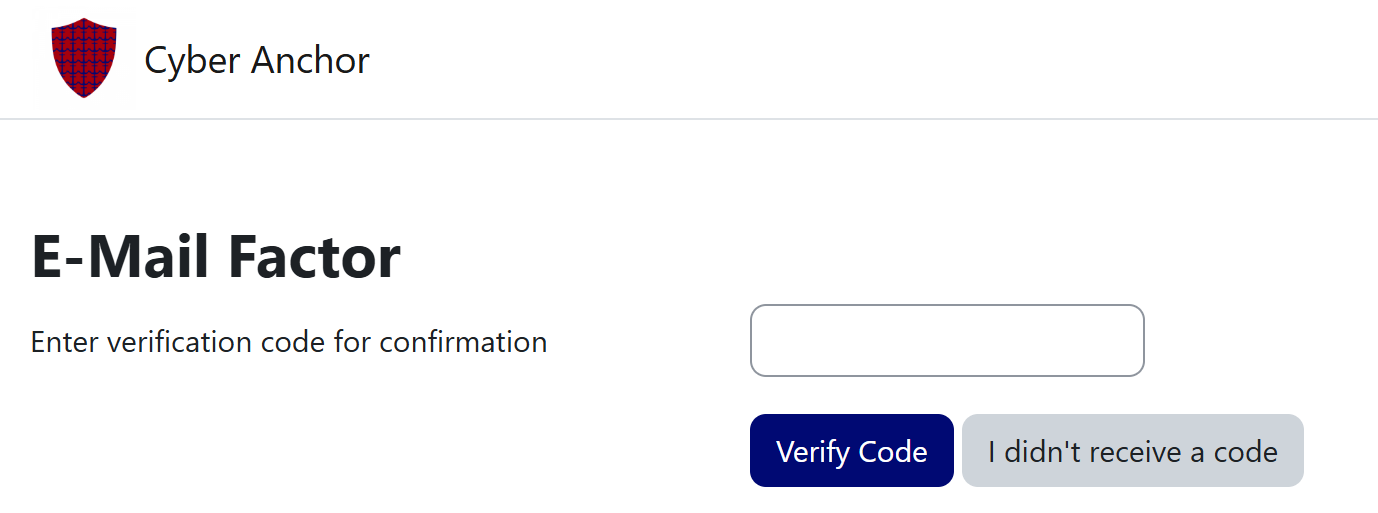
Figure 2.3
After clicking continue on the confirmation message, an email factor will be required (Figure 2.3). This is a multifactor authentication requirement (something taught to you in our course).
Go to your registered email. Copy the confirmation code received via email (figure 2.4) and paste it into the email factor (figure 2.3) and select “verify code”.

Figure 2.4
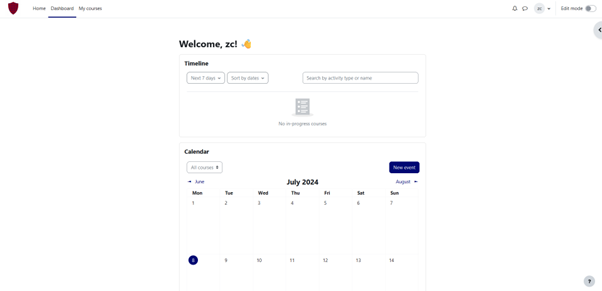
Figure 2.5
This will then bring you to your dashboard (figure 2.5).
Step 3: Sign up for course (and payment)
From the Dashboard (figure 2.5), navigate to Home to find the list of available courses (figure 3.1). In this case, Scamproof Solutions – Individuals is the course we shall select.
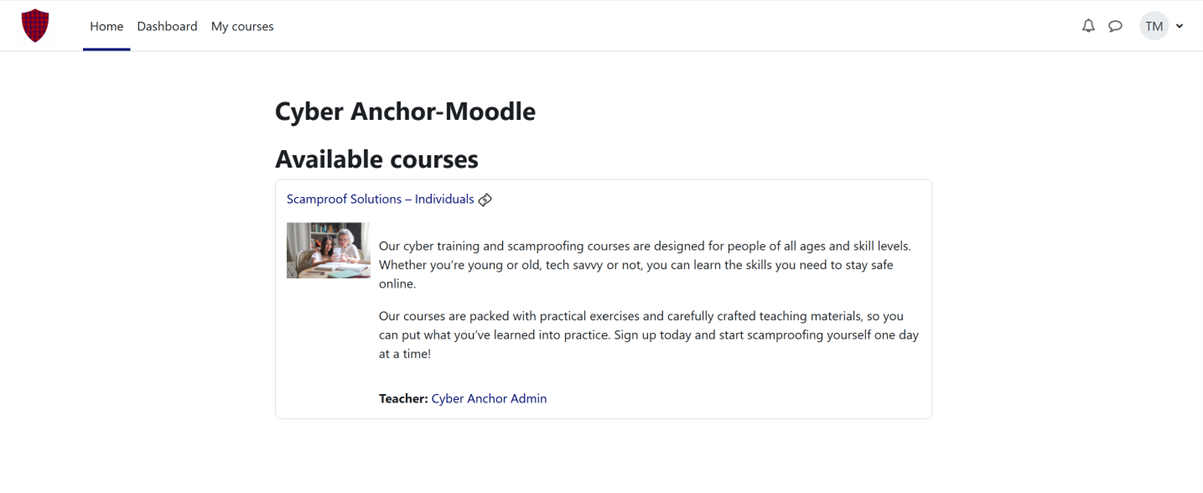
Figure 3.1
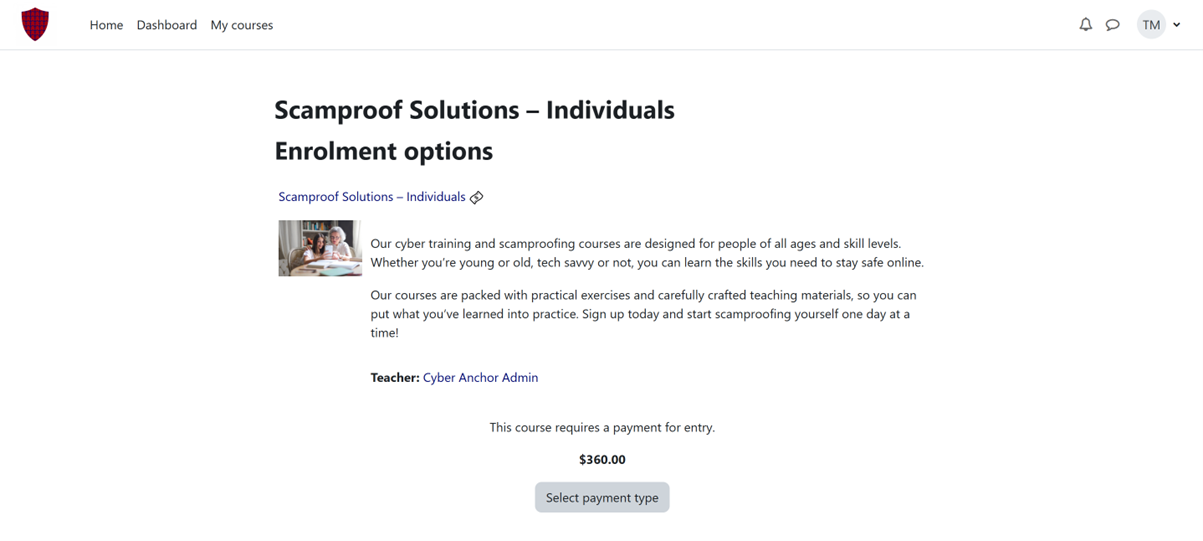
Figure 3.2
Upon clicking the course, you will be directed to a page containing the yearly fee payment (figure 3.2). To start the course, click on the button “select payment type”
Upon clicking on select payment type. A popup giving the option of Stripe is provided to you (Figure 3.3).
Stripe is a reputable third party payment software, allowing for credit card details to be safely used for transactions.
Click on the “Proceed” button.
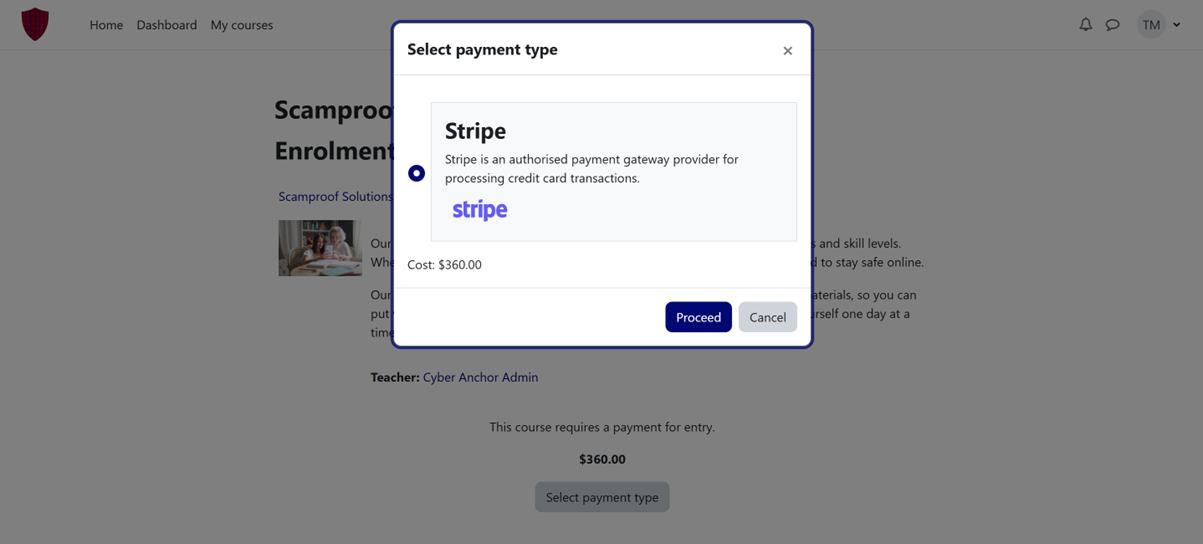
Figure 3.3
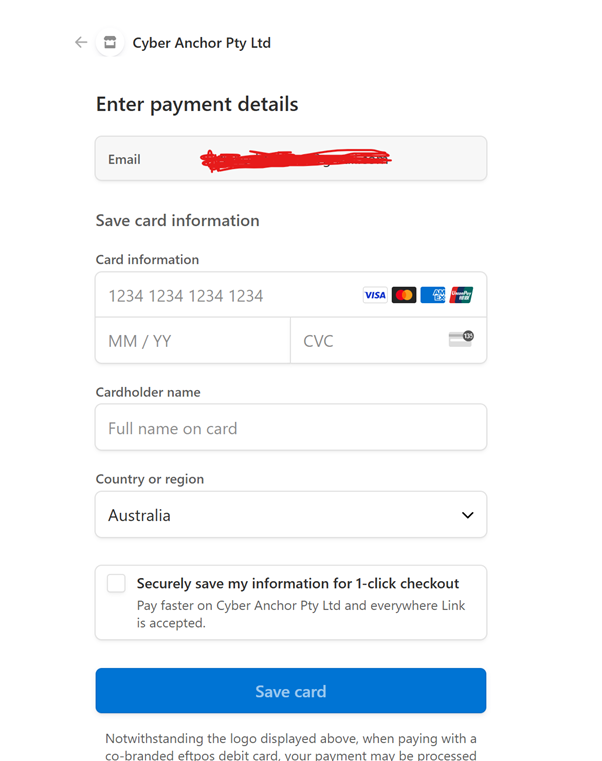
Figure 3.4
Upon clicking on proceed, you will be directed to a Stripe Checkout Page (Figure 3.4). Enter your card details in and select “Save card”.
You will then be redirected back to the Moodle page and have full access to the paid course.
Step 4: Setting up the two factor authentication on authenticator app
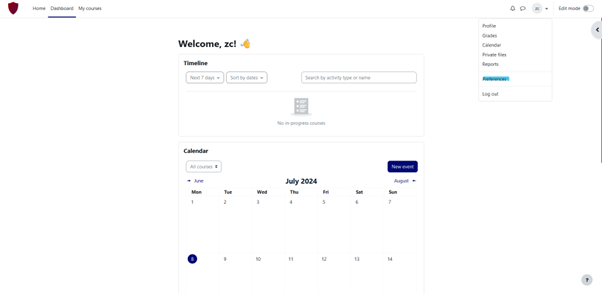
Figure 4.1
Select the dropdown menu containing your initials (top right next to “Edit Mode” and click on “preferences” (figure 4.1 highlighted blue).
Select “multifactor authentication preferences” under “User Account” (Figure 4.2 highlighted blue).
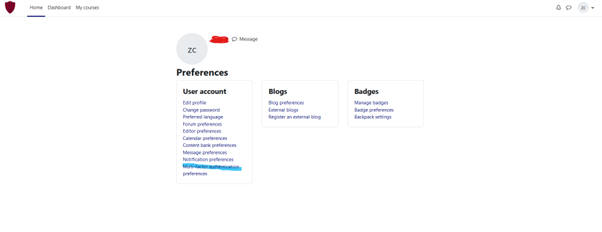
Figure 4.2
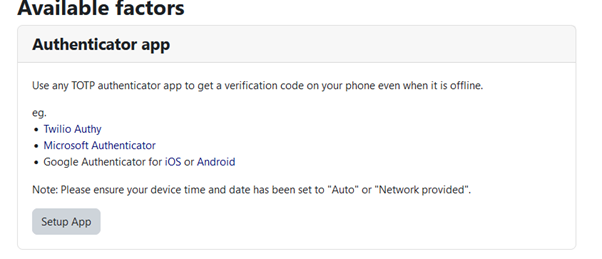
Figure 4.3
This gives you the opportunity to use an authenticator app to get the verification codes to login to your account.
Click “setup app” (figure 4.3)
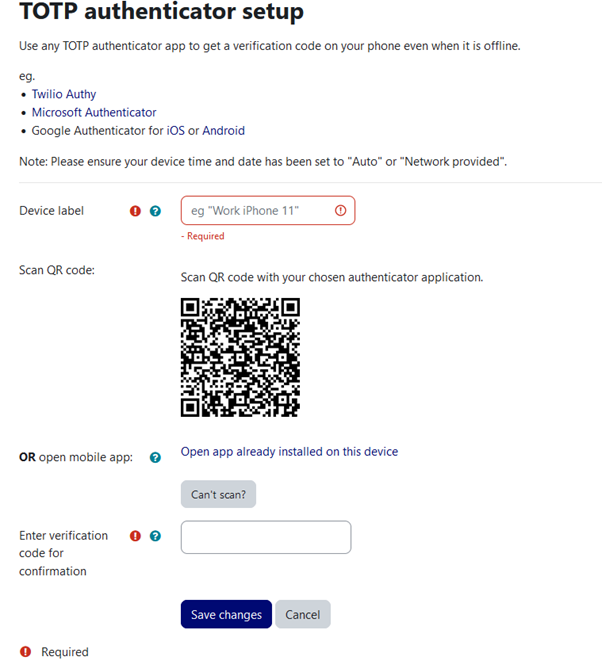
Figure 4.4
After clicking setup app, you will be redirected to this page. Name the device under “device label”, scan the QR code in your phone authenticator app (google authenticator preferred) and enter the 6-digit code appearing on your authenticator app into the “enter verification code for confirmation” box, and then click save changes.
For more information on how to do this, you can neglect this step and watch our multifactor authentication videos to better understand the process.